WashConnect can be used to send email communications for marketing and site management purposes. Please follow these steps to setup and enable this feature today. These steps assume you are using an business email and not a free, personal email account.
Outside of WashConnect:
Work with your email service provider to obtain the following
- Email ID – Typically matches the Email Server User ID, but does not need to if your email service provider allows for alternate email ID’s. Consult with your provider if you are unsure if you have this feature. Examples:
- Server Port – Examples:
- 465 SSL optional, may or may not be needed depending on Server/Account settings
- 25 SSL tends to be false
- 587 SSL tends to be true
- Server Address - Examples:
- smtp.gmail.com
- smtp-relay.gmail.com
- smtp.office365.com
- Email Server UserID – The ID you use to log into your email inbox, examples:
- Email Password – The Password used to log into your email inbox.
- Use SSL True/False? – This will either be True or False depending on the email provider you are using, consult your provider if you are unsure.
If you do not know the Port or SSL information, you may be able to look this up online, however it is always preferred to obtain this information directly from your email service provider to ensure we are using the correct settings.
Within WashConnect:
These settings need to be set at both the Corporate and local site level.
WARNING: Making changes to any of the settings from the System Setup menu could potentially result in equipment damage. User must have security rights to access these settings. ICS technical support would be happy to assist you.
- Login to WashConnect at the corporate level.
- On the System Setup menu, click to select Devices, and then click to select Settings.
-
In the Device Type box, select Global.
-
In the Device Name box, select Corp Main DB (or Touch POS).
-
In the Settings Type box, select Global.
-
In the Settings box, select Email Server Setup.
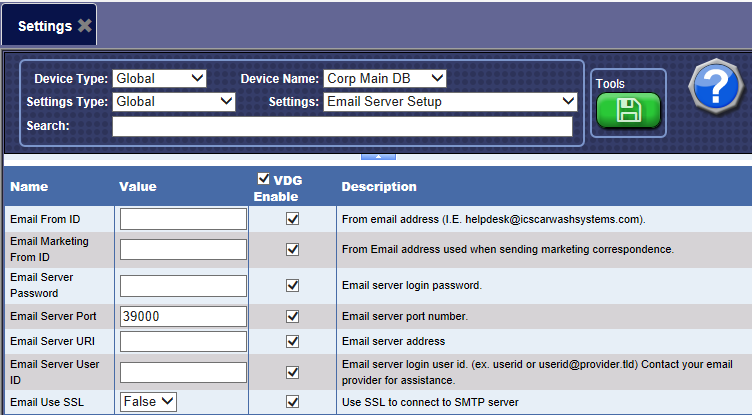
Testing:
If any of the above email settings have changed locally, perform the following steps:
- Restart the Alert Service in Windows Services.
- On the Configuration menu, click to select Alerts.
- Click to select the Send Test Alert button.
- In the Email box, type in the email address where to send the test alert.
- Check Alert Server/Alert Notification Service logs.
- Send test ePOS Email (WashConnect version 1.6 or higher) or test Receipt (WashConnect version1.6.13.6 or highter)
- Check WashConnectWeb logs.
NOTE: If email settings have changed at Corporate, contact ICS Technical Support for assistance with finalizing your changes.
Please contact ICS Technical Support if any assistance is needed:
Comments
0 comments
Please sign in to leave a comment.